








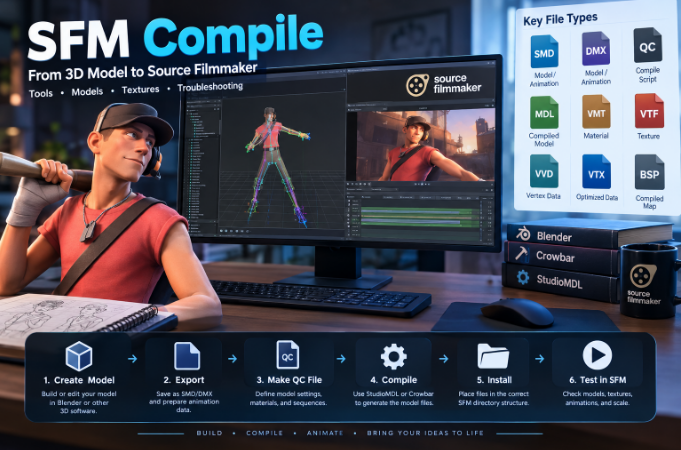
Creating professional-looking animations requires more than a good idea and an interesting character. Artists also need the right software, compatible models, working textures, and a reliable process for preparing their creative assets. For people who use Source Filmmaker, commonly known as SFM, one technical term that frequently appears in tutorials and community discussions is SFM compile.
If you are new to Source Filmmaker, the word compile might sound complicated. You may wonder whether it refers to converting a 3D model, preparing animation files, exporting a finished video, or fixing an asset that refuses to load. The answer depends on the context in which the term is used.
In most technical discussions, SFM compile refers to preparing and converting models or other assets into formats that the Source engine can use. This process becomes especially important when you want to introduce custom characters, props, animations, or other resources created outside the program.
Understanding compilation can help you avoid common problems, including missing models, incorrect textures, broken animations, and unsuccessful exports. It can also make your creative workflow more organized and predictable.
This guide explains the meaning of SFM compile, the tools involved, the steps required to compile a custom model, common errors, and practical ways to troubleshoot problems. Whether you are a beginner or an experienced digital artist, you will learn how the compilation process fits into a complete Source Filmmaker workflow.
What Is SFM Compile?
SFM compile is a term associated with preparing digital assets for use in Source Filmmaker. Source Filmmaker is Valve’s filmmaking and animation application, which uses the Source engine to create animated scenes from characters, objects, environments, lighting, and cameras.
When artists create custom models in applications such as Blender or Maya, their original project files are not automatically compatible with Source Filmmaker. The assets may need to be exported into supported intermediate formats and processed using the appropriate Source tools.
This conversion process is known as compiling.
For example, an artist might create a character model in Blender. The model could contain a mesh, a skeleton, materials, and animation data. To use it in SFM, the artist must prepare the relevant information, export it in a suitable format, create a compilation script, and process the files using a Source model compiler.
A simplified workflow looks like this:
3D modeling software → SMD or DMX files → QC script → model compiler → compiled model → Source Filmmaker
The exact process depends on the asset, the tools being used, and the Source engine version involved.
Compilation is not limited to characters. It can also be relevant to props, animation sequences, and custom environments. However, different asset types require different workflows.
It is important to understand that SFM compile is a descriptive term rather than the official name of one single application. Tools such as StudioMDL and Crowbar are associated with model compilation, while map compilation uses a different set of utilities.
Why Is SFM Compilation Important?
Compilation connects the files created during the design process with the formats required by the Source engine. Without the appropriate conversion, a custom asset may not appear correctly in the animation software.
There are several reasons why this process matters.
1. Making Custom Models Compatible
One of the main reasons artists compile models is to use characters and objects that are not included in the default asset library.
A creator might design an original character, modify an existing prop, or prepare a model from another 3D application. Compiling the asset helps turn the prepared source data into a format that SFM can recognize.
This gives artists greater freedom to develop scenes that go beyond the software’s standard resources.
2. Preparing Animation Data
A model may contain a skeleton, bone hierarchy, and animation sequences. These components must be prepared correctly so that the character can move as intended.
Incorrect bone names, incompatible skeleton structures, or missing animation references can cause problems after compilation.
A properly prepared model helps ensure that the animation data is available to the engine in the expected structure.
3. Connecting Materials and Textures
A model’s appearance depends on more than its geometry. Materials and textures provide its colors, surface details, and visual characteristics.
Source models commonly reference material files that point to texture resources. If these references are incorrect, a model might load but display missing or unexpected textures.
Compilation and material setup must therefore be treated as related but distinct parts of the workflow.
4. Improving Asset Organization
A well-organized compilation process makes it easier to maintain custom content.
Keeping source files, scripts, textures, and compiled outputs in clearly named folders helps prevent accidental overwrites and missing dependencies. It also makes it easier to identify which version of a model is currently being used.
For creators who work on several animation projects, this organization can save considerable troubleshooting time.
Essential Tools for SFM Compile
Before compiling a custom model, it helps to understand the purpose of the main tools and file types.
You do not necessarily need every tool for every project. The requirements depend on whether you are creating a model, preparing textures, compiling a map, or exporting a completed animation.
Source Filmmaker
Source Filmmaker is the application used to assemble and animate scenes. It provides tools for working with models, cameras, lighting, animation timelines, and rendered output.
SFM is where you ultimately test whether a compiled model works correctly in a scene.
Blender or Another 3D Modeling Application
Blender, Maya, and other modeling applications can be used to create or edit 3D assets.
These applications handle tasks such as mesh modeling, UV mapping, rigging, and preparing animation data. However, an ordinary Blender project file is not itself a compiled Source model.
The artist must follow an appropriate export and conversion workflow.
StudioMDL
StudioMDL is the Source model compiler used to process model data according to instructions supplied through a QC script.
It converts compatible source data into compiled model files. The exact location and availability of the executable depend on the installed Source tools and game configuration.
Crowbar
Crowbar is a community-developed utility commonly used for Source model compiling and decompiling.
It provides a graphical interface that can make certain model tasks easier than manually entering commands. Depending on the setup, it can help users select a QC file, configure compiler settings, run compilation, and review the output.
Crowbar does not eliminate the need to prepare compatible model data correctly. If the source files or QC instructions are wrong, the compilation may still fail.
VTFEdit and Material Tools
Source assets commonly use VMT material files and VTF texture files.
VTFEdit is a tool historically associated with creating and editing VTF textures. Tool compatibility can vary with modern systems and versions, so creators should verify that their chosen utilities work with their particular setup.
A useful rule is to separate model compilation from texture preparation. A model can compile successfully while still having broken materials or missing textures.
Understanding Important SFM File Formats
File extensions can look confusing when you first start working with Source Filmmaker. Knowing their basic purposes makes it easier to understand tutorials and diagnose errors.
| File format | Main purpose |
|---|---|
| SMD | Stores model, skeletal, or animation data in a Source-compatible intermediate format |
| DMX | Stores model and animation-related data in a format used by Source tools |
| QC | Provides instructions for compiling a model |
| MDL | Contains compiled model information |
| VVD | Stores vertex data associated with a compiled model |
| VTX | Stores optimized model data used for rendering |
| PHY | Stores physics-related model data when included |
| VMT | Defines material properties and references textures |
| VTF | Stores texture image data in a Source texture format |
| VMF | Stores editable map data used with Hammer |
| BSP | Stores a compiled Source map |
Not every model will include every file listed above. The output depends on the model configuration, the compilation settings, and the asset’s requirements.
For example, a model does not necessarily need a physics file if no collision model is being compiled. Similarly, texture files are handled separately from the core model compilation process.
Understanding these distinctions can help you determine which files need attention when something goes wrong.
How to Compile a Custom Model for Source Filmmaker
Compiling a model becomes easier when you approach it as a series of manageable tasks. The following workflow provides a general overview for a custom model.
Exact instructions can vary according to the software versions, export tools, and model type.
Step 1: Prepare Your 3D Model
Begin by creating or editing the model in your chosen 3D application.
Check the geometry carefully. Remove unnecessary objects, inspect the mesh for obvious problems, and make sure the model is suitable for the intended use.
If the model has a skeleton, verify that the bones are arranged correctly and that the mesh is weighted to the appropriate bones.
Also review the model’s scale, orientation, and UV mapping. These details can affect how the asset appears after it is imported into Source Filmmaker.
Before moving forward, save a separate copy of the original project. Keeping an untouched version makes it easier to recover if later changes cause problems.
Step 2: Export the Model into a Compatible Format
Once the model is ready, export the relevant geometry and animation data using an appropriate Source-compatible exporter.
SMD and DMX are common intermediate formats in Source model workflows.
Do not assume that exporting a model as FBX or OBJ automatically makes it ready for SFM. Those formats may be useful during asset creation, but additional conversion and preparation are generally required.
After exporting, confirm that the expected files were created and saved in the correct folder.
If the model includes animation sequences, make sure the necessary animation data is also exported.
Step 3: Create a QC File
The QC file is a text-based script that tells the model compiler how to build the asset.
Depending on the model, it can define the output model name, reference mesh, material directory, animation sequences, and other settings.
A simplified example is shown below:
$modelname "custom/hero.mdl"
$body "Body" "hero_reference.smd"
$surfaceprop "flesh"
$cdmaterials "models/custom"
$sequence idle "hero_idle.smd" fps 30
This example illustrates the general structure of a QC file rather than a complete script for every model.
The $modelname directive identifies the compiled model’s output path. $body directive references the main model data, while $cdmaterials identifies the material directory.
The $sequence directive defines an animation sequence. The example assumes that the corresponding animation file exists and is compatible with the model.
If you are compiling a prop without animation, your QC file may not need an animation sequence. More complex characters may require additional directives for bones, bodygroups, attachments, hitboxes, or other features.
The paths and filenames in the script must match your actual files.
Step 4: Configure Your Compiler
Open your chosen model-compilation tool and select the correct compiler for the target Source environment.
If you are using Crowbar, review its configuration and locate the QC file you created.
Check that the selected game or engine configuration matches the asset you are building. Different Source-based games can have different requirements, so using an incompatible setup may cause errors.
Before running the compiler, verify the output directory and make sure you are not overwriting a model that you still need.
Step 5: Run the Compilation Process
Start the compilation and allow the tool to process the model.
The compiler reads the QC instructions, accesses the referenced files, and attempts to generate the compiled model and its supporting data.
If the process succeeds, review the output log rather than relying only on a success message. Warnings can sometimes indicate problems that become visible later.
If compilation fails, look for the first meaningful error in the log. Later errors may simply be consequences of the original problem.
For example, a missing reference file can cause subsequent steps to fail because the compiler cannot access the required model data.
Step 6: Check the Output Files
After successful compilation, inspect the output folder.
A typical compiled model includes an MDL file and supporting model data, such as VVD and VTX files. Other files may be present depending on the model configuration.
Make sure the generated files are in the correct directory and that their names correspond with the model path defined in the QC file.
Do not move only the MDL file if the model also depends on other compiled files. Keeping the associated outputs together is important.
Step 7: Install the Model in the Appropriate SFM Directory
Place the compiled model and its related resources in the correct game-content directory.
A typical user-content structure may resemble the following:
SourceFilmmaker/
└── game/
    └── usermod/
        ├── models/
        │   └── custom/
        │       ├── hero.mdl
        │       ├── hero.vvd
        │       └── hero.vtx
        └── materials/
            └── models/
                └── custom/
                    ├── hero.vmt
                    └── hero.vtf
This is an illustrative directory structure. The exact filenames, output paths, and material locations must match your model’s configuration.
Some models contain multiple VTX files or additional resources. Others may use a different content directory based on the project setup.
The important point is that the compiler output and the paths referenced by the model must agree.
Step 8: Test the Model in Source Filmmaker
Open Source Filmmaker and locate the compiled model through the appropriate model browser or asset-loading workflow.
Add it to a test scene and inspect its appearance.
Check whether the geometry loads correctly, the textures are visible, the model has the expected scale, and the skeleton behaves as intended.
If the model is animated, test the relevant sequences rather than assuming they work because the compilation succeeded.
A successful compilation is an important milestone, but testing in the actual target application is the final way to confirm that the asset works as expected.
How SFM Texture Compilation Works
Textures are an important part of creating convincing 3D scenes. However, they follow a process that is separate from compiling the model itself.
A texture created as a PNG, TGA, or another common image format may need to be converted into a suitable Source texture format. In many traditional Source workflows, that format is VTF.
The corresponding VMT file defines how the material uses the texture and specifies relevant rendering properties.
For example, a material file may reference a texture using a path relative to the game’s materials directory.
If the VMT file points to the wrong location, Source Filmmaker may fail to find the texture even when the VTF file exists elsewhere on the computer.
When preparing textures, follow these guidelines:
- Use an appropriate image format and texture-conversion tool.
- Confirm that the texture dimensions are supported by the target workflow.
- Verify the VMT shader and texture references.
- Keep material paths consistent with the model’s QC settings.
- Test transparent materials separately when the model uses them.
- Check capitalization and spelling in filenames and folder names.
A model that displays a purple-and-black checkerboard pattern often has a missing or incorrectly referenced material or texture. That symptom does not necessarily mean the model compilation itself failed.
The best troubleshooting approach is to inspect the material path, VMT file, VTF file, and model’s material-directory settings.
Common SFM Compile Errors and How to Fix Them
Even a well-prepared model can encounter problems during compilation. The good news is that many errors become easier to diagnose once you understand the role of each file.
1. Missing SMD or DMX File
Possible cause: The QC file references a source file that does not exist at the specified location.
Solution: Check the filenames and directory structure. Confirm that the file was exported successfully and that the path in the QC script matches the actual file.
If the file has a different extension or name, update the script accordingly.
2. Model Compiles but Textures Are Missing
Possible cause: The material file is missing, the texture reference is incorrect, or the material directory does not match the model configuration.
Solution: Inspect the VMT file and verify that its texture references point to the correct VTF files.
Also check the $cdmaterials path in the QC script and make sure the material files are installed in the appropriate materials directory.
3. Model Does Not Appear in SFM
Possible cause: The model was saved to the wrong directory, the model path is incorrect, or one of the required compiled files is missing.
Solution: Compare the QC output path with the actual installed location. Confirm that the model and its supporting files are present.
Refresh or restart the relevant application workflow if necessary, then test the model again.
4. Compilation Stops with a QC Error
Possible cause: The script contains an invalid directive, incorrect syntax, or an incompatible file reference.
Solution: Read the error message carefully and inspect the relevant line of the QC file.
Check quotation marks, filenames, paths, and directive spelling. If the script contains advanced options, temporarily simplify it to identify the part causing the problem.
Make changes to a copy of the script so you can restore the original if needed.
5. The Character Has Broken or Missing Animations
Possible cause: Animation files are missing, sequence names are incorrect, or the skeleton and animation data do not match.
Solution: Confirm that the animation files exist and correspond to the model’s bone structure. Check the $sequence definitions and test each sequence individually.
If the problem originates in the original 3D project, you may need to correct the rigging or export settings before compiling again.
6. The Model Has an Incorrect Scale
Possible cause: The model was exported using an unsuitable scale or orientation.
Solution: Check the unit settings and export configuration in your 3D application. Compare the model against a known reference asset in SFM.
Correct the source model or export settings and rebuild the asset if necessary.
7. The Compiler Cannot Find Its Executable
Possible cause: The compiler path is incorrect, the required tools are not installed, or the configuration points to a different Source installation.
Solution: Verify the compiler location and check that the selected configuration matches the installed tools.
Avoid copying an executable path from a tutorial without confirming that it matches your own installation.
8. Compilation Succeeds but SFM Crashes
Possible cause: The model contains incompatible data, missing dependencies, unsupported settings, or other structural problems.
Solution: Review the compilation log and test the asset with a minimal scene.
If possible, compare the model with a simple working asset and remove unnecessary features from a test copy. This can help identify whether the problem is caused by the geometry, rigging, animation data, or compilation settings.
There is no single fix for every crash, so use the error logs and controlled testing to narrow down the cause.
SFM Model Compilation vs. Rendering a Finished Animation
Another source of confusion is the difference between compiling a model and rendering a movie.
Although some users use the word compile informally when discussing finished videos, asset compilation and animation rendering are separate tasks.
Model compilation prepares custom assets so that Source Filmmaker can load them. It may involve QC files, SMD or DMX data, StudioMDL, and compiled model files.
Animation rendering processes a completed scene containing models, cameras, lighting, and animation. The result may be a sequence of images or a video, depending on the export workflow.
For example, if a custom character does not appear in the model browser, the problem may involve asset installation or compilation.
If the character appears correctly but the exported movie has the wrong resolution, missing frames, or unexpected visual quality, the problem is more likely related to rendering or export settings.
Understanding this distinction helps you choose the correct troubleshooting steps instead of repeatedly recompiling a model when the actual problem is in the final output process.
How to Compile Maps for Source Filmmaker
Models are not the only assets that may require compilation. Custom maps and environments follow a different process.
Source map creators commonly work with Hammer and editable VMF files. The map is then processed by the appropriate Source map-compilation tools to create a BSP file.
A traditional map-compilation workflow may involve three main tools:
- VBSP: Processes map geometry and builds the map structure.
- VVIS: Calculates visibility information.
- VRAD: Processes lighting information.
These tools perform different tasks, and their requirements can vary with the target game or Source configuration.
After compilation, the resulting map must be installed in a location that Source Filmmaker can access. Required textures, materials, models, and other dependencies must also be available.
Map compilation is not the same as model compilation. A QC script and StudioMDL are associated with model assets, while VMF-to-BSP processing follows the map pipeline.
If you are new to SFM, it is usually easier to learn custom model compilation first and explore map compilation separately.
Best Practices for a Reliable SFM Compile Workflow
A consistent workflow can reduce repeated errors and make custom asset development more efficient.
Keep Source Files and Compiled Files Separate
Store original modeling projects, exported files, QC scripts, and compiled outputs in clearly labeled folders.
This separation makes it easier to rebuild a model without losing the original work.
Use Descriptive File Names
Choose filenames that explain what each file contains.
For example, distinguish between reference geometry, animation sequences, and final compiled output. Consistent naming reduces the chance of referencing the wrong file in a QC script.
Check Paths Before Compiling
Many compilation problems come from incorrect file locations rather than complicated modeling issues.
Review the model output path, material directory, and source-file references before starting the compiler.
Test Simple Changes First
When a model fails, avoid changing every setting at once.
Make one adjustment, compile again, and check whether the result changes. This approach makes it easier to identify the cause of the problem.
Keep Backups
Save a backup before making major changes to the QC script, rig, or mesh.
A backup provides a reliable recovery point if a later edit introduces a new issue.
Read the Full Error Log
The final error message may not reveal the original cause. Look for the earliest meaningful warning or failure and investigate that first.
Test Inside the Target Application
Do not assume that a model is fully ready just because the compiler reports success.
Open it in Source Filmmaker, inspect its materials, and test its animations before using it in a large project.
Use Compatible Tools
Confirm that your exporter, compiler, and target Source environment are compatible. Instructions written for a different game or tool version may not apply directly to your installation.
Is SFM Compile Difficult for Beginners?
SFM compile can seem difficult at first because it involves several tools and file types. However, beginners do not need to master every part of the Source engine immediately.
Start with a simple prop or model that does not require complicated rigging. Learn how to export the source data, create a basic QC file, run the compiler, and install the resulting files.
Once that process works, move on to models with animations, additional materials, and more complex structures.
It is also useful to keep notes about successful configurations. If a particular compiler setup works for one model, documenting it can help you understand which settings are important when you create another asset.
The most effective way to learn is to build a small test project, identify mistakes, and improve the workflow gradually.
Frequently Asked Questions About SFM Compile
What does SFM compile mean?
SFM compile usually refers to converting or preparing custom assets for use in Source Filmmaker. For models, this commonly involves exporting SMD or DMX data, creating a QC script, and using a Source model compiler to generate the required files.
Is SFM compile a separate software application?
No. The term describes a process rather than one specific official application. StudioMDL is a Source model compiler, and Crowbar is a community tool that can provide a graphical interface for model-compilation tasks.
Can I compile a Blender model for SFM?
Yes, provided the model is prepared using a compatible workflow. You generally need to export suitable model data, configure the necessary materials and rigging, create a QC file, and compile the asset using compatible Source tools.
An ordinary Blender project or FBX file is not normally a finished SFM model.
Why does my SFM model have purple-and-black textures?
This checkerboard appearance commonly indicates that a material or texture is missing or incorrectly referenced.
Check the VMT material file, VTF texture file, material paths, and the relevant QC settings. Also verify that the required resources are installed in the correct directories.
Which files are created during model compilation?
A typical compiled model uses an MDL file and supporting files such as VVD and VTX. A PHY file may also be generated when physics data is included.
The exact output depends on the model and compiler configuration.
Do I need Crowbar to compile SFM models?
Not necessarily. Crowbar is a popular option, but the underlying compilation process can use StudioMDL directly when the required tools and configuration are available.
Crowbar can simplify some tasks, particularly for users who prefer a graphical interface.
Is compiling an SFM model the same as rendering a video?
No. Model compilation prepares assets for use by the Source engine. Rendering processes a completed scene into images or video.
The two processes happen at different stages of the creative workflow.
Why does my model compile successfully but fail to load?
Possible causes include incorrect installation paths, missing supporting files, incompatible model data, broken material references, or other structural issues.
Check the compiler log, verify the output files, and test the model in a simple scene before investigating more complicated possibilities.
Can I compile custom maps for SFM?
Yes, custom maps can be prepared using a compatible Source map workflow. Map compilation typically involves Hammer and tools such as VBSP, VVIS, and VRAD, with a compiled BSP file as the result.
The exact requirements depend on the target Source environment.
How can I make SFM compilation faster?
Start with properly organized source files, avoid unnecessary model complexity, use compatible tools, and correct errors before running repeated compilations.
Smaller test models can also help you diagnose configuration problems before compiling a large character or environment.
Conclusion
SFM compile is an important part of preparing custom assets for Source Filmmaker. It connects the work done in 3D modeling applications with the formats required by the Source engine, allowing creators to use custom characters, props, animations, and other resources in their projects.
The basic model workflow involves preparing the asset, exporting compatible source data, creating a QC script, running a suitable compiler, organizing the output files, and testing the model inside SFM. Texture setup and map compilation involve related but separate processes.
Most importantly, successful compilation is not only about pressing a button. Correct file paths, compatible tools, suitable model data, and well-organized materials all contribute to a reliable result.
If you are a beginner, start with a simple asset and learn each stage individually. When errors occur, inspect the compiler log and test one change at a time. With practice, you can build a more dependable workflow and spend less time troubleshooting and more time creating animations.
By understanding how SFM compilation works, you can approach custom assets with greater confidence and prepare your projects for smoother production.